Employee monitoring software: Recorded only while
an employee's own timer is running.
For distributed field teams, remote staff and billable client work where there is no record of the day at all. The Windows desktop app records activity and screenshots during a tracked session, and nothing outside one.
Recorded only while a timer runs
- Only While A Timer Runs
- Desktop Tracker
- Browser Extension
- Activity Summaries
- Screenshot Interval Per Person
- Productivity Rules
- Managers See Downward
- Private Screenshot Links
Monitoring
Monitoring, in 3 parts.
3 parts. Swipe across.Keep scrolling.
Why an organization would use this at all
Field teams, remote staff and billable client work often leave no record of the day beyond a message at the end of it. This module exists for those cases and no others.
- Distributed field teams with no record of the working day
- Remote staff working away from any company site
- Billable client work that has to be evidenced
- For the people you give the desktop app to, not for everyone
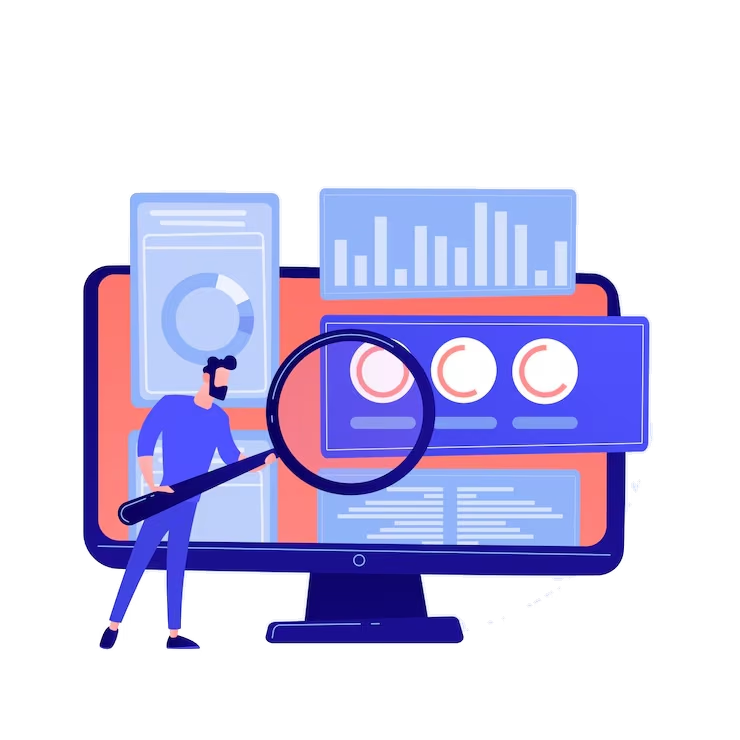
What starts a recording, and who has to be told
Recording needs a running timer. The desktop app can start one when it opens, and a check-in can too. The product has no consent step of its own and no setting that turns screenshots off, so decide who runs the desktop app before you roll it out.
- Nothing is recorded unless a timer is running, and applications and screenshots only in the desktop app
- Screenshots at the interval set on each employee's record, every 1 to 30 minutes
- App, website and productivity reports from Advance Tracking up; the desktop timer and screenshots on every plan
- The employer gives affected staff the notice and consent their local law requires
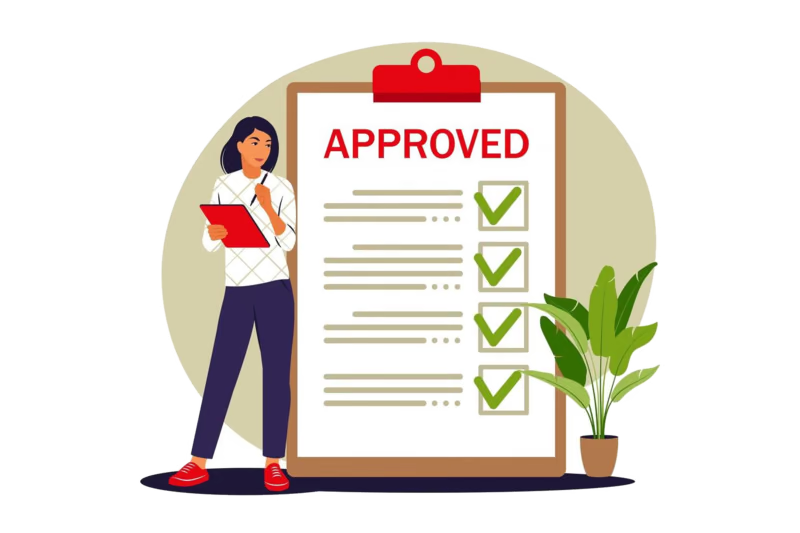
What is captured, and what is not
The desktop tracker and browser extension capture only while the employee's own timer is running. Screenshots come from the desktop app and show whatever is on screen at that moment.
- In the desktop app: the application in front, its window title and idle time while the timer runs
- With the browser extension, the site being visited
- No keystrokes and no mouse counts, and nothing while the timer is stopped
- Screenshots are private and open through links that expire after 30 minutes
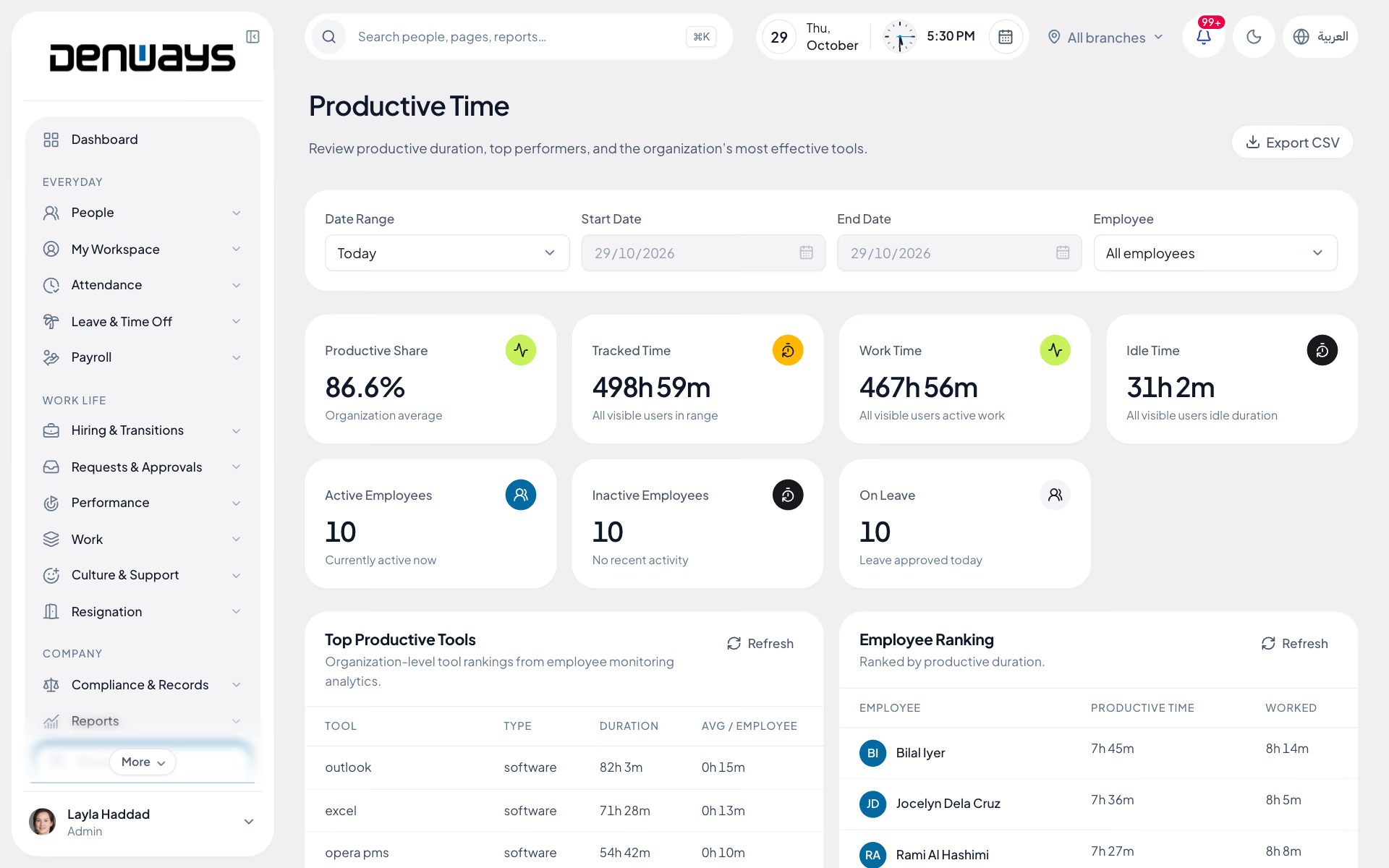
Monitoring, screen by screen.
The product itself, on a demo company's data. Nothing here is drawn for the website.
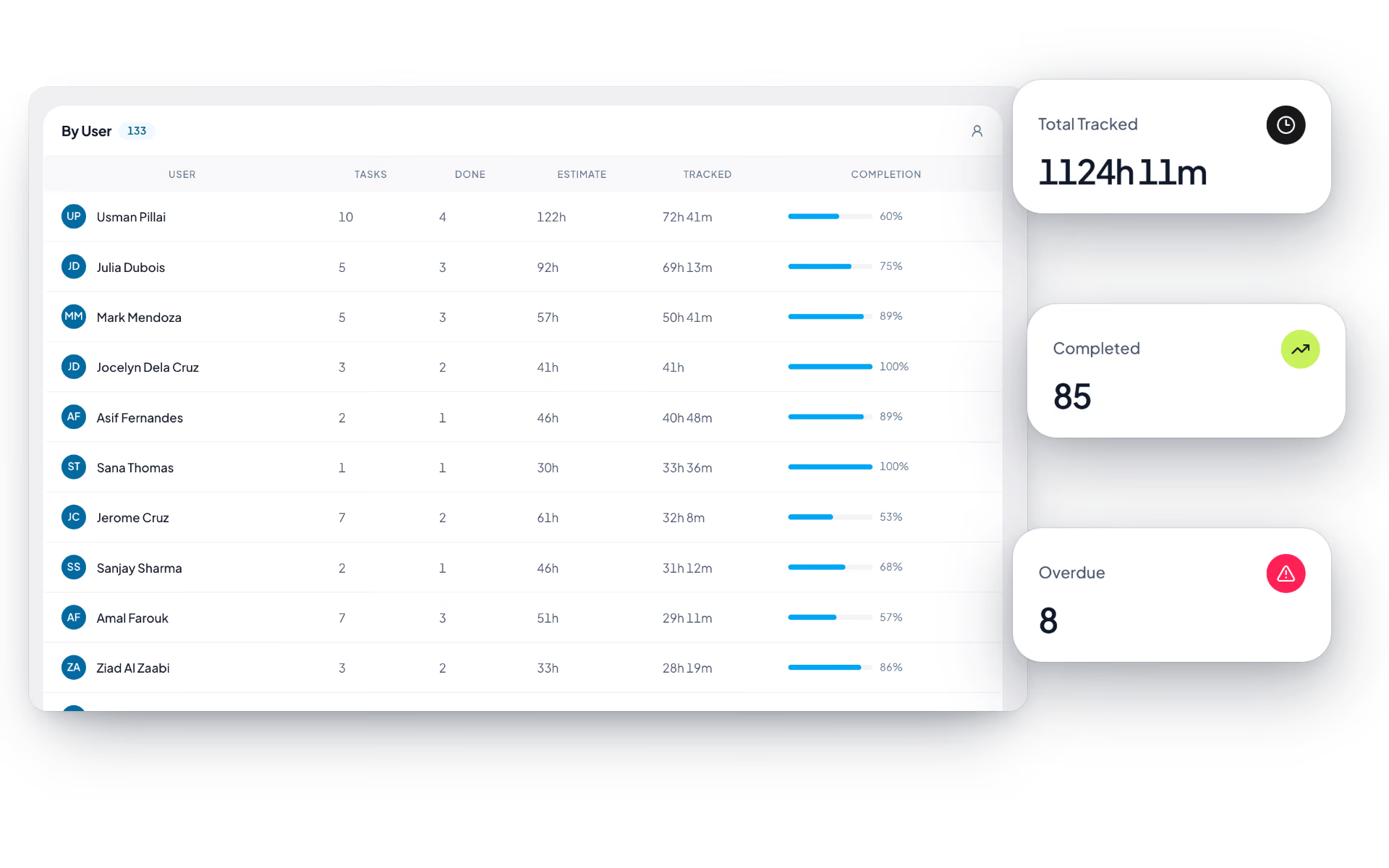
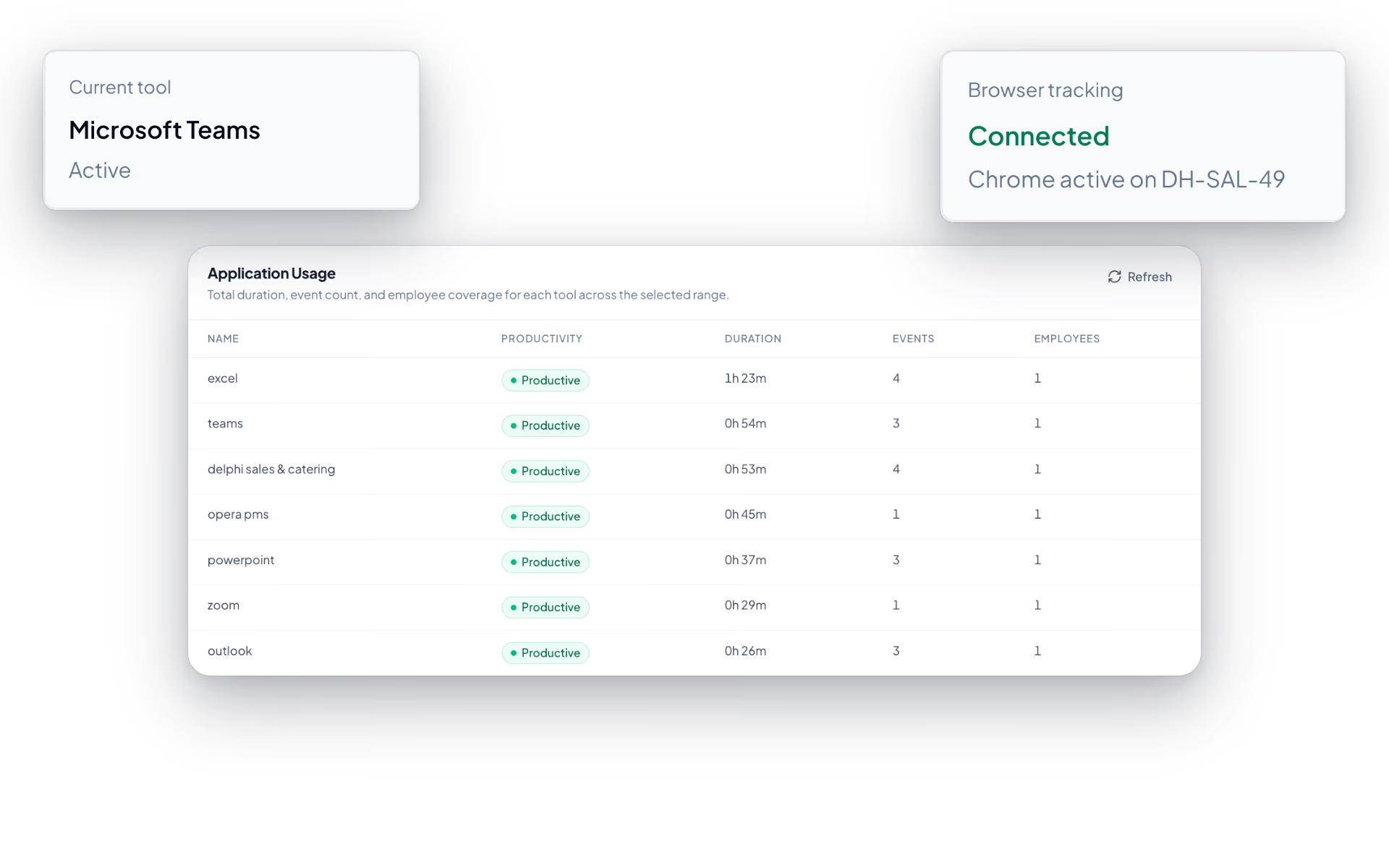
Timer on, recorded. Timer off, nothing.
Monitoring is a decision an organization should make deliberately and tell its people about. The product records what the timer covers and nothing else.
The organization
- Decides who runs the desktop app
- Sets the screenshot interval per person
- Managers see people below them; admins, everyone in their branches
- Responsible for notice and consent
The record
- Desktop tracker and browser extension
- Activity and application summaries
- Screenshots at the set interval
- Only while a timer runs
The employee
- Recorded only while their own timer runs
- Sees their own tracked time and current activity
- Nothing captured once the timer stops
The full list
What does the Monitoring module include?
19 features across 3 parts of the product, each one built into the application. Where one depends on a plan, a setting or a release, the note under its module says so.
Activity and productivity
What a tracked hour was spent in, for managers of remote and billable teams. Collected only while a timer is running.
Activity summaries come with the Advance Tracking plan and every plan above it.
- What is recorded
- The application in front, its window title, idle time and, with the browser extension, the site being visited. No keystrokes and no mouse counts.
- Only on the clock
- Nothing is recorded unless that person's timer is running. Our own window is excluded.
- Productive and unproductive time
- Share of tracked time, work time, idle time, active and inactive people, and who is on leave.
- Rankings
- Top productive and unproductive tools, employees ranked by productive time, and efficiency per department.
- App and website usage
- Every application and site with its classification, duration, number of events and how many people used it.
- One person, live
- Current tool, work status, whether the timer is running, last activity and whether browser tracking is connected.
- Date ranges and export
- Today, the last 2, 7, 15 or 30 days, or custom dates. Each page exports CSV.
- Managers see downward only
- A manager sees people ranked below them. Admins see everyone within their branches.
Screenshots
Periodic screen captures from the desktop app, at an interval you set per person.
- Interval per employee
- Every 1, 3, 5, 10, 15 or 30 minutes, set on the employee's record. Ten minutes for someone newly added.
- Only while the timer runs
- Captured by the desktop app, one display at a time, and never outside a tracked session.
- Gallery
- Employee, capture time and a link to the full image, filtered by person and date.
- Admins can delete
- Select what is on screen, delete the selection, or delete everything in a date range for one person. Managers can view but not delete.
- Private links
- Images are private and open through signed links that expire after 30 minutes.
- Survives an outage
- If an upload fails, the capture is queued on the computer and sent later.
Productivity rules
You decide whether a tool is work. For a designer, a design app is; for an accountant, perhaps not.
App and website usage is part of Advance Tracking and the plans above it, not Basic Tracking.
- Classify what was actually used
- The list shows the apps and sites seen in the chosen period, each with its current classification and how many people used it.
- Three classes
- Productive, unproductive or neutral.
- Bulk apply
- Tick rows, choose a class and apply it to up to a hundred at once.
- Rewrites history
- Changing a rule reclassifies activity already recorded, in the background.
- Defaults included
- Built-in rules cover the common tools. Yours take precedence.
Is everyone monitored by default?
Nothing is recorded unless a timer is running. Applications, window titles and screenshots come only from the Windows desktop app, which can start the timer itself when it opens; a timer run in a web browser records idle time and the page of this app that is open. There is no organization-wide switch or group setting: who is monitored comes down to who you give the desktop app to, so make that decision before you roll it out.
Do employees have to be told and to consent?
Yes, and that responsibility sits with the employer. The product has no notice or consent step of its own, so the organization must give affected staff the notice and obtain the consent their local law requires before they use the desktop app. Your legal adviser should confirm what your jurisdiction expects.
Can screenshots be switched off?
Screenshots cannot be switched off today. The desktop app captures at the interval set on each employee's record, from every minute to every 30 minutes. If you do not want screenshots of someone's screen, do not have them run the desktop tracker.
What is not collected?
Nothing is captured while the employee's timer is stopped, and keystrokes and mouse counts are not recorded. Screenshots show whatever is on screen at that moment, so install the tracker on company devices only and tell staff to stop the timer before personal use.
Can employees see what has been recorded about them?
Employees see their own tracked time and current activity on the time tracker. Activity reports and screenshots are for administrators and managers with the permission: a manager sees people ranked below them, and an admin sees everyone within their branches. Employees do not have a screen for their own screenshots.
What do the tracker and the extension capture?
The desktop tracker records time while the employee's timer runs and produces activity and application summaries for that time, and the browser extension covers work done in a browser. Both feed the same time entries used for project reporting.
Keep reading
Bring your whole workforce onto one platform.
See how DenwaysHR handles HR, attendance and leave across the GCC, and payroll with the WPS file in the UAE.